

Supplier Stock Sheets to WooCommerce
Sync supplier stock sheets to WooCommerce using Google Sheets, Dry Run, Manual Review, confirmed matches, logs, schedules, and safer stock controls before live product updates.
Supplier stock data is rarely perfect. Product names differ, model codes can be inconsistent, row ranges change, and supplier sheets often need checking before they update WooCommerce stock.
- ✔Use supplier stock sheets as a WooCommerce stock source
- ✔Sync supplier stock quantities from Google Sheets
- ✔Run Dry Run before applying supplier stock updates
- ✔Send uncertain supplier matches to Manual Review
- ✔Save approved supplier matches for future syncs
- ✔Use logs before trusting scheduled supplier sync
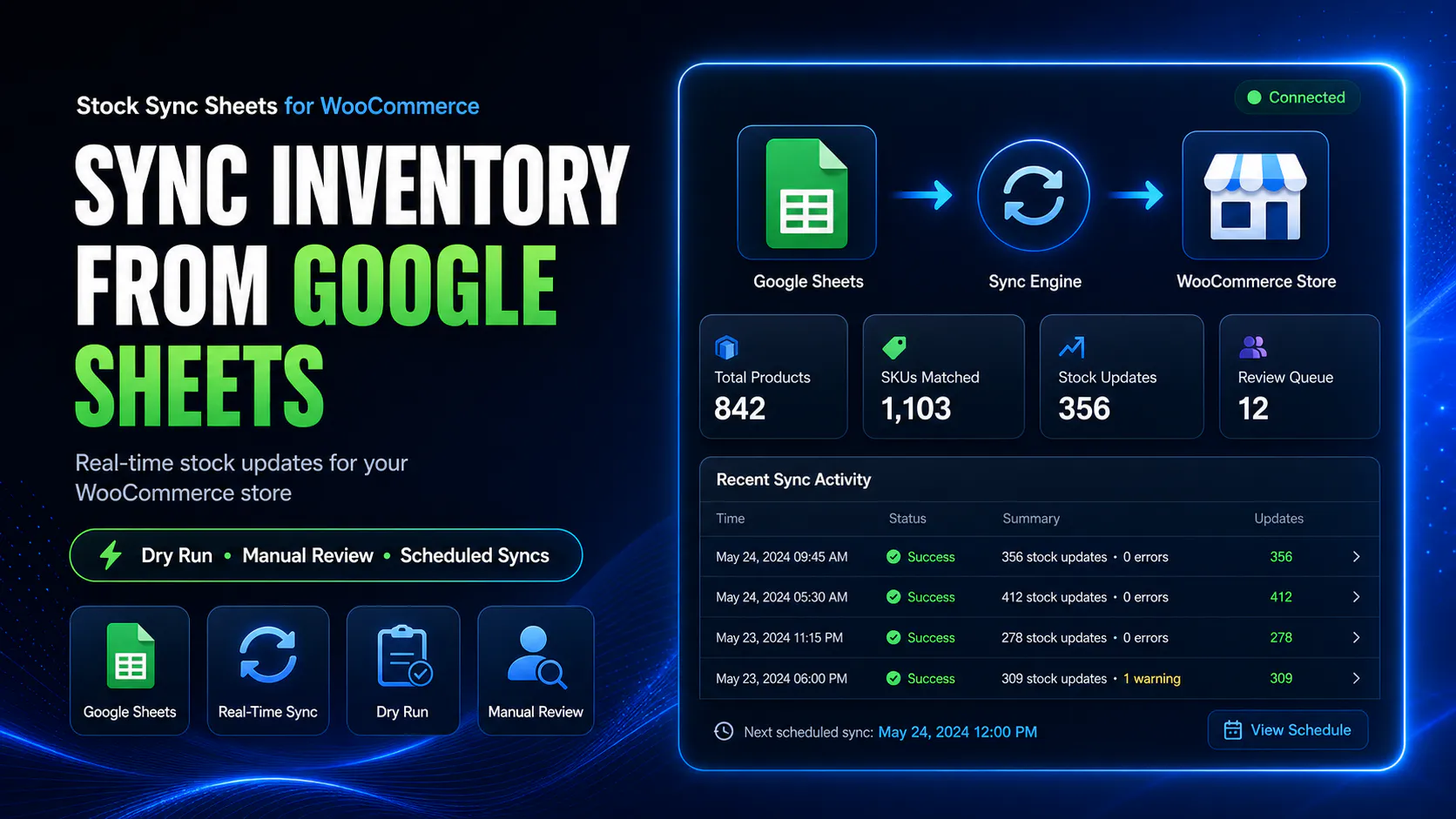
How supplier stock sheets sync to WooCommerce
The safest supplier workflow is to treat supplier data as something that must be checked before live WooCommerce stock changes happen.
Add supplier data to Google Sheets
Use the supplier sheet, supplier tab, row range, model code, SKU, product name, and stock quantity columns needed for matching.
Map supplier fields
Configure which supplier columns identify the product and which column contains stock values.
Run Dry Run
Preview supplier stock changes before live WooCommerce products are updated.
Review and confirm matches
Resolve uncertain supplier rows, save confirmed matches, check logs, then run live stock sync.
Supplier sheets are useful, but they are not always clean
Supplier stock sheets can save time, but they often use different product names, different model codes, changed row layouts, merged descriptions, missing SKUs, or inconsistent stock values.
Stock Sync Sheets helps bring supplier stock into WooCommerce while giving you safer review steps before supplier data changes live product stock.
- ✔Use supplier model codes, SKUs, product IDs, or names for matching
- ✔Preview supplier stock changes before live sync
- ✔Review uncertain supplier matches manually
- ✔Save confirmed supplier matches for future runs
Do not blindly sync supplier stock sheets
Supplier sheets are one of the easiest ways to update WooCommerce stock, but they are also one of the easiest ways to make a costly mistake.
A wrong column, wrong row range, wrong supplier model code, or wrong product match can update stock incorrectly across your store.
- ✔Dry Run supplier stock before live sync
- ✔Use Manual Review for uncertain supplier rows
- ✔Check logs after supplier sync
- ✔Use schedules only after the setup is tested
Supplier stock sheet problems this workflow helps control
Supplier data can be messy. The goal is not to pretend it is perfect. The goal is to give the store owner controls before that data changes WooCommerce.
Different product codes
Supplier model codes and WooCommerce SKUs may not match exactly. Manual Review helps approve the correct product.
Different product names
Supplier product names can be shorter, longer, abbreviated, or formatted differently from your WooCommerce names.
Changed stock columns
Supplier sheets can change layout. Dry Run helps catch wrong column mapping before live sync.
Unexpected stock values
Supplier values may include blanks, text, unavailable labels, or unusual quantity formats that need checking.
Similar products
Similar product names and variants can create risky matches if the workflow does not include review.
Schedule risk
Supplier sync schedules should only be used after mappings, matches, and logs are proven to be correct.
Supplier stock sheet sync compared with manual supplier updates
Manual supplier updates can work when your catalog is small. They become slow and error-prone when stock sheets are large or frequently updated.
| Workflow | Manual supplier stock updates | Supplier stock sheets to WooCommerce |
|---|---|---|
| Large supplier files | Slow product-by-product editing. | Use mapped supplier rows for faster stock updates. |
| Different supplier product names | Manual lookup every time. | Manual Review can approve uncertain matches. |
| Repeat supplier updates | Repeated product matching work. | Confirmed Matches can be reused in future syncs. |
| Wrong stock column risk | Can happen during copying. | Dry Run helps reveal wrong mappings before live sync. |
| Sync history | No dedicated sync log. | Logs show updated, skipped, no-match, and review rows. |
| Automation | Mostly manual. | Schedules can be used after the supplier workflow is tested. |
Best supplier stock workflows for Stock Sync Sheets
Stock Sync Sheets is strongest when supplier data is mapped carefully and reviewed before automation is trusted.
Single supplier sheet
Use one supplier sheet or tab as the stock source for a group of WooCommerce products.
Multiple supplier tabs
Use separate tabs or configurations where supplier data is split by brand, category, warehouse, or source.
Warehouse supplier stock
Use warehouse supplier files where stock quantities need to update WooCommerce in bulk.
High-SKU supplier catalogues
Use Dry Run, Manual Review, and confirmed matches to reduce repeated product lookup work.
Supplier model-code matching
Use supplier model codes where they are the strongest product identifier for matching.
Scheduled supplier sync
Use schedules after the supplier sheet setup, row range, columns, matches, and logs have been tested.
Supplier stock sync should start with Dry Run
Do not connect a supplier sheet and immediately run live updates. Supplier sheets can change without warning, and product matching needs to be proven first.
The safer process is Dry Run first, Manual Review for uncertain matches, confirmed matches for approved links, then live sync after the logs look correct.
- ✔Run Dry Run before supplier stock sync
- ✔Resolve Manual Review items
- ✔Build confirmed supplier matches
- ✔Enable schedules only after testing
Helpful supplier stock sheet resources
These pages explain related workflows for stock sync, Dry Run, Manual Review, bulk updates, inventory sync, and plugin comparison.
Plugin overview
See the main Stock Sync Sheets buyer guide covering Stock Sync, Dry Run, Manual Review, Product Builder, AI Review, schedules, and Push on Sale.
Stock Sync
Learn how WooCommerce stock sync from Google Sheets works with Dry Run, Manual Review, logs, schedules, and matching controls.
Stock Import with Dry Run
Preview supplier stock imports before live WooCommerce products are updated.
Manual Review
Review uncertain supplier matches before live stock changes are applied.
Bulk Stock Update
Bulk update WooCommerce stock from Google Sheets with preview and review controls.
Multi-Store WooCommerce Inventory with Google Sheets
Learn how shared Google Sheets can support multi-store WooCommerce inventory workflows when more than one store or team needs stock visibility.
Plugin comparison
Compare WooCommerce stock sync plugin workflows before choosing a system for your store.
Supplier Stock Sheets to WooCommerce FAQs
Can I sync supplier stock sheets to WooCommerce?
Yes. Stock Sync Sheets can sync supplier stock sheets to WooCommerce when the supplier data is available in Google Sheets and mapped to WooCommerce products.
Can supplier stock sheets be previewed before updating WooCommerce?
Yes. Dry Run lets store owners preview supplier stock changes before live WooCommerce products are updated.
What if supplier product names do not match WooCommerce product names?
Uncertain supplier row matches can go to Manual Review so the store owner can choose the correct WooCommerce product before stock is changed.
Can approved supplier stock matches be reused?
Yes. Approved supplier product matches can be saved as confirmed matches so future stock syncs can reuse the correct product link.
Should supplier stock sync run on a schedule?
Only after testing. The safer workflow is to run Dry Run, resolve Manual Review items, check logs, confirm matches, and then enable schedules if needed.
Can I use different supplier tabs or sheets?
Yes. Supplier workflows can use separate sheet configurations where different suppliers, tabs, row ranges, or categories need their own setup.
Sync supplier stock sheets to WooCommerce with more control
Use Stock Sync Sheets to preview supplier stock data, review uncertain matches, save confirmed product links, and update WooCommerce stock from Google Sheets safely.