

Multi-Store WooCommerce Inventory with Google Sheets
Manage multi-store WooCommerce inventory with Google Sheets, Dry Run, Manual Review, confirmed matches, logs, schedules, Sheet Push, and safer controls before stock changes go live.
If you run more than one WooCommerce store, a shared Google Sheet can help centralise stock planning. The important part is testing each store setup carefully before live inventory updates are trusted.
- ✔Use Google Sheets as a shared inventory control source
- ✔Sync WooCommerce stock from mapped sheet data
- ✔Run Dry Run before live stock changes
- ✔Use Manual Review for uncertain product matches
- ✔Save confirmed matches for each store workflow
- ✔Use logs before trusting schedules or shared stock automation
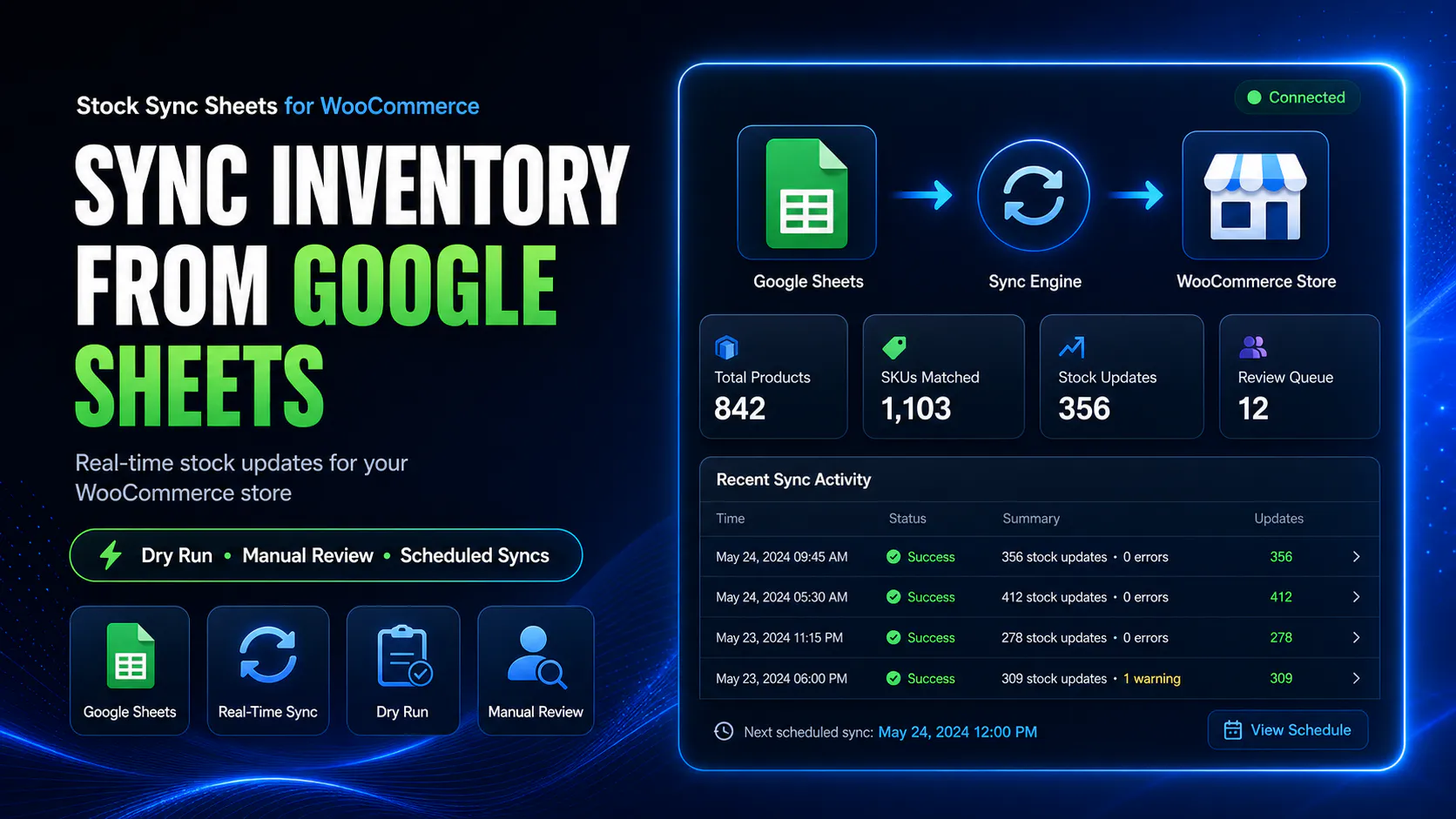
How multi-store inventory with Google Sheets works
The safest approach is to treat Google Sheets as the shared stock reference, then configure and test each WooCommerce store separately before live updates or schedules are used.
Create a shared inventory sheet
Use Google Sheets to hold product IDs, SKUs, model codes, stock quantities, store notes, and stock source data.
Configure each store
Set up the relevant sheet, tab, row range, stock columns, product identity fields, and category filters for each WooCommerce store.
Run Dry Run first
Preview stock changes for each store before live products are updated.
Review and sync carefully
Resolve uncertain matches, save confirmed matches, check logs, then run live sync only when the setup is proven.
Use Google Sheets as the shared stock control file
Multi-store inventory is hard when each store is updated separately, especially if the same products are sold across different WooCommerce installs, brands, locations, or sales channels.
A shared Google Sheet gives your team one place to prepare stock values. Stock Sync Sheets can then help each WooCommerce store read the mapped stock values into its own products.
- ✔Use one shared stock reference file
- ✔Map each WooCommerce store carefully
- ✔Preview each store before live sync
- ✔Review logs separately for each workflow
Multi-store inventory needs stricter controls
Multi-store stock sync can multiply mistakes. If the wrong row, column, or product match is used, the problem may affect more than one store or workflow.
Stock Sync Sheets is built around safer controls such as Dry Run, Manual Review, confirmed matches, ignored matches, blacklist controls, and logs.
- ✔Dry Run before live stock changes
- ✔Manual Review for uncertain product matches
- ✔Confirmed Matches for each store workflow
- ✔Logs before trusting schedules
Multi-store inventory problems this workflow helps control
Multi-store WooCommerce inventory can get messy quickly. A shared sheet workflow helps, but only when each store is mapped and reviewed carefully.
Different product IDs
Two WooCommerce stores may not use the same product IDs, so each store needs its own matching setup.
Different SKUs or model codes
Stores may use different SKU formats, product names, or model code structures for the same item.
Variation differences
Variation-heavy stores need careful matching so stock is not applied to the wrong parent or child product.
Shared sheet mistakes
A wrong stock column or row range can affect multiple workflows if it is not caught with Dry Run.
Schedule conflicts
Automatic sync should be used only after each store setup has been tested and logs are clear.
Sales changing stock
Push on Sale can help update Google Sheets when WooCommerce sales reduce stock in a connected workflow.
Multi-store Google Sheets workflow compared with manual store updates
Manual store-by-store stock editing can become slow, inconsistent, and risky as soon as more than one WooCommerce store is involved.
| Workflow | Manual multi-store editing | Google Sheets multi-store workflow |
|---|---|---|
| Stock source | Each store may be updated from memory, emails, or separate files. | Google Sheets can act as the shared stock reference. |
| Updating multiple stores | Repeated product-by-product editing across stores. | Each store can read mapped stock values from the shared workflow. |
| Preview before live updates | Depends on manual checking. | Dry Run can preview stock changes before live sync. |
| Product matching | Manual lookup for each store. | Manual Review and confirmed matches help control store-specific matching. |
| Repeat work | The same matching work is repeated often. | Confirmed Matches can make future runs cleaner. |
| Audit trail | No dedicated sync log. | Logs help show what was found, changed, skipped, or reviewed. |
Best-fit multi-store inventory workflows
This page is for stores that need shared stock planning, repeated stock updates, and safer review controls across more than one WooCommerce workflow.
Multiple WooCommerce stores
Use a shared Google Sheet as the stock control source while each store sync setup is tested separately.
Separate regional stores
Use sheet data to help manage inventory across regional or brand-specific WooCommerce stores.
Shared warehouse stock
Use warehouse stock values from Google Sheets as the source for multiple WooCommerce workflows.
Supplier-driven stock
Use supplier stock sheets to update product availability across connected WooCommerce store workflows.
High-SKU stores
Reduce repeated store-by-store product editing when many SKUs need stock updates.
Team inventory planning
Use one sheet that staff can review while WooCommerce stores use controlled sync workflows.
Important: test each store before using schedules
A multi-store setup should not be automated until every store has been checked. Each WooCommerce store may have different product IDs, product names, categories, variations, and stock behaviour.
The safer workflow is to run Dry Run, resolve Manual Review items, build confirmed matches, check logs, and only then enable scheduled sync for a proven store workflow.
- ✔Run Dry Run per store setup
- ✔Resolve Manual Review items first
- ✔Build confirmed matches separately
- ✔Use schedules only after logs are clean
Helpful multi-store inventory resources
These pages explain related workflows for stock sync, supplier sheets, bulk updates, Dry Run, Manual Review, and plugin comparison.
Plugin overview
See the main Stock Sync Sheets buyer guide covering Stock Sync, Dry Run, Manual Review, Product Builder, AI Review, schedules, and Push on Sale.
Stock Sync
Learn how WooCommerce stock sync from Google Sheets works with Dry Run, Manual Review, logs, schedules, and matching controls.
Supplier stock sheets
Sync supplier stock sheets to WooCommerce with Google Sheets, Dry Run, Manual Review, and confirmed matches.
Stock Import with Dry Run
Preview Google Sheets stock imports before live WooCommerce products are updated.
Manual Review
Review uncertain product matches before live stock changes are applied.
Plugin comparison
Compare WooCommerce stock sync plugin workflows before choosing a system for your store.
Multi-Store WooCommerce Inventory with Google Sheets FAQs
Can Google Sheets help manage inventory across multiple WooCommerce stores?
Yes. Google Sheets can be used as a shared inventory control file for multiple WooCommerce store workflows when each store is configured, tested, and synced carefully.
Does Stock Sync Sheets automatically combine multiple WooCommerce stores into one central system?
Stock Sync Sheets should be treated as a WooCommerce and Google Sheets workflow tool. For multi-store use, each store setup should be configured and tested carefully against the shared sheet workflow.
Why does Dry Run matter for multi-store inventory?
Dry Run helps preview stock changes before they affect live WooCommerce products, which is especially important when multiple stores rely on the same inventory source.
Can Manual Review help with multi-store stock matching?
Yes. Manual Review can hold uncertain product matches so the store owner can approve the correct WooCommerce product before stock changes are applied.
Can one Google Sheet control different stores or stock groups?
Yes, a shared Google Sheet can be structured with different tabs, row ranges, categories, or stock groups, but each store setup needs to be mapped and tested carefully.
Should scheduled sync be used for multi-store inventory?
Only after testing. Run Dry Run, resolve Manual Review items, confirm matches, check logs, and then enable schedules only when each store workflow is proven.
Manage multi-store WooCommerce inventory with Google Sheets
Use Stock Sync Sheets to connect shared Google Sheets inventory workflows with WooCommerce, preview stock updates, review uncertain matches, and sync with more control.