
New User Guide for Stock Sync Sheets
This New User Guide shows store owners how to connect Google Sheets to WooCommerce, run a safe Dry Run, review uncertain matches, confirm products, and complete the first live stock sync with more confidence.
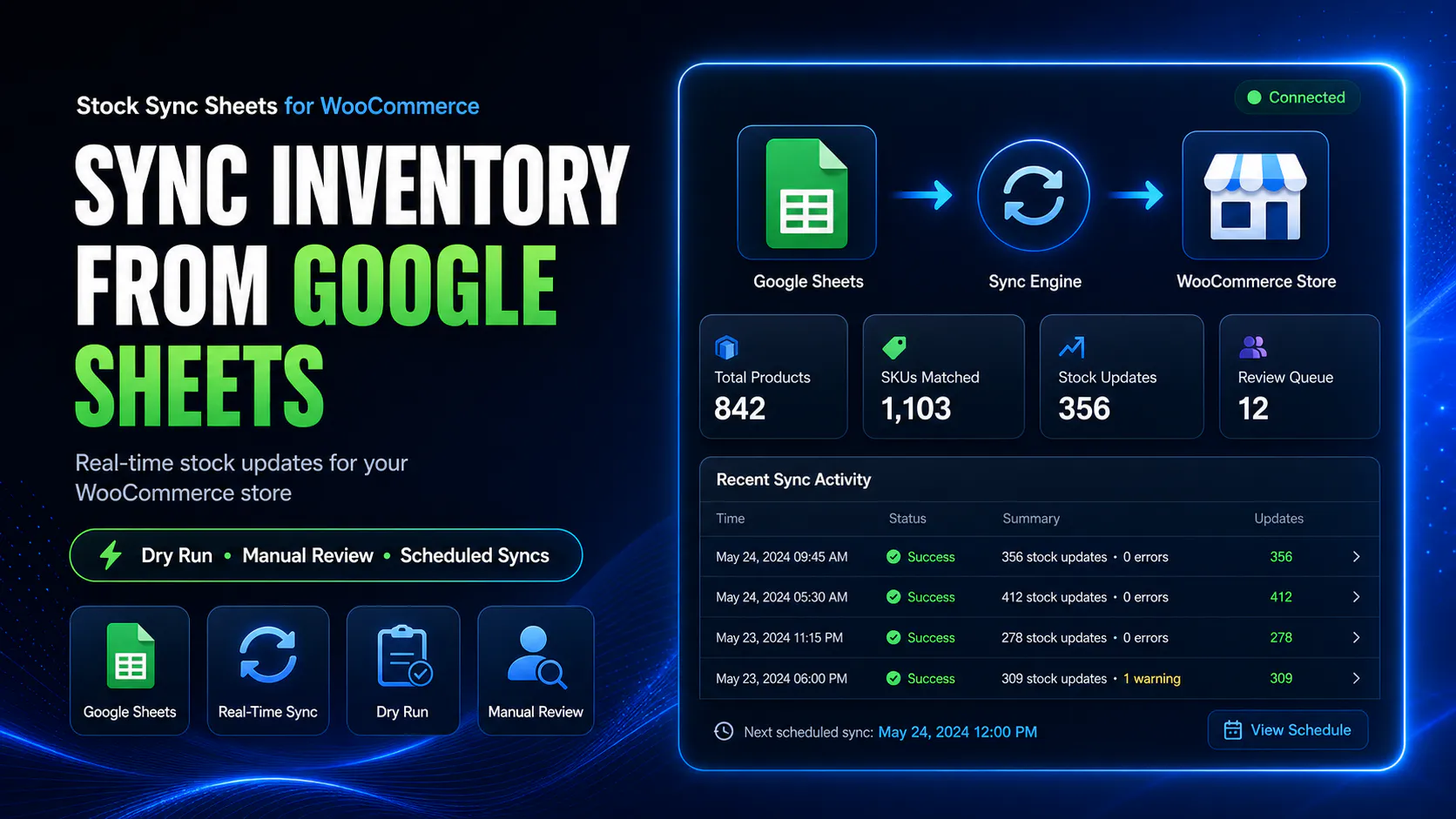
New User Guide setup path
This New User Guide starts with stock sync before Product Builder, AI Review, Sheet Editor, Sheet Push, Push on Sale, or the included Price Sync module. That order keeps the setup cleaner.
Why stock sync comes first
First, this New User Guide helps you prove the main stock connection works. It checks Google Sheet access, sheet IDs, tab names, row ranges, product identity fields, matching rules, manual review, confirmed matches, logs, and schedule behaviour.
After that, the wider tools become easier to use. Product Builder, AI Review, Sheet Push, Push on Sale, and the included Price Sync workflow all depend on clean sheet data and reliable product matching.
6 steps to getting started
Follow this New User Guide in order. As a result, your first live stock sync is based on checked settings instead of guesswork.
Step 1: Set up the plugin settings
Start on the Settings page, because the plugin needs the right sheet details before it can read stock rows.
- First, prepare your Google Sheet for stock data.
- Next, add your Google API key.
- Then, paste the Google Sheet ID.
- After that, enter the exact tab name.
- Also, select the product identity field, such as SKU, product ID, model code, or your chosen matching column.
- Finally, choose the quantity column.
- For example, limit the row range to the rows you want to read, such as 5–100.
- In addition, save the settings before opening the Stock Sync page.
Step 2: Open Stock Sync
Next, use the Stock Sync page to test how your Google Sheet rows match WooCommerce products.
- Once ready, open Stock Sync from the WordPress admin menu.
- Before that, review the Sheets to Include table.
- As a result, turn Dry Run ON for the first test.
- Therefore, avoid scheduled syncs during the first setup.
- First, load Sheet Preview to confirm the expected rows appear.
- Next, click the sync button to run the first Dry Run.
Step 3: Review Dry Run results
Then, read the Dry Run output before allowing any live stock changes.
- Then, review rows that matched automatically.
- After that, inspect skipped rows.
- Also, look at no-match results.
- Finally, read warnings or errors in the Sync Log.
- For example, confirm variation rows match the correct variation, not only the parent product.
- In addition, stay in Dry Run until the results are clean enough.
Step 4: Handle manual matches
After the Dry Run, fix anything the plugin could not confidently match on its own.
- Once ready, open Pending Manual Product Matches on the Stock Sync page.
- Before that, choose the correct WooCommerce product from the dropdown.
- As a result, search manually when the right product is not listed.
- Therefore, mark items as ignored where they should not auto-match.
- First, save the selected matches.
- Next, treat this step carefully, because it improves future sync runs.
Step 5: Check Confirmed Matches
Once matches are saved, use Confirmed Matches to check what the plugin will trust in future syncs.
- Then, review successful automatic and manual matches.
- After that, compare method labels such as manual, exact, or automatic where shown.
- Also, send a wrong match back to manual review.
- Finally, blacklist a bad pair if the same mistake should never repeat.
- For example, use ignored matches for rows that should stay out of auto-matching.
Step 6: Run one final test
Finally, run one more Dry Run before switching to a live stock sync.
- In addition, run another Dry Run after manual review is complete.
- Once ready, check whether the logs are clean enough.
- Before that, review automatic matches again.
- As a result, resolve any remaining manual items.
- Therefore, turn Dry Run OFF only when the results look safe.
- First, run the first real stock sync.
- Next, add a schedule after the live workflow behaves correctly.
This New User Guide keeps the first setup controlled. Therefore, WooCommerce stock can stay aligned with Google Sheets with less manual work and fewer avoidable mistakes.
After your first live stock sync
Do not stop after the first live run. Instead, check the Dashboard, review the logs, and confirm that the workflow is stable before adding schedules.
Check the Dashboard
The Dashboard gives a quick overview after your first live stock sync.
- Then, review the stock workflow status.
- After that, open pending manual matches if any remain.
- Also, compare confirmed match counts.
- Finally, scan ignored and blacklist counts.
- For example, confirm the schedule status.
- In addition, use quick links to open the next page that needs work.
Review the Sync Log
The Sync Log shows what happened during the run, so read it before assuming every row worked correctly.
- Once ready, find updated stock entries.
- Before that, notice skipped rows.
- As a result, review no-match rows.
- Therefore, watch for warnings or errors.
- First, confirm whether variation rows need manual review.
Enable schedules after testing
Scheduling should come after the workflow is tested, not before.
- Next, enable schedules only once Dry Run and live sync both look correct.
- Then, confirm the page shows the correct scheduled status.
- After that, watch the logs after the first scheduled run.
- Also, fix setup problems before relying on automation.
Using the other included tools
Once stock sync is stable, move into the wider Stock Sync Sheets system. However, keep product matching and sheet settings clean before using advanced workflows.
Product Builder
Use Product Builder when you want to create or update WooCommerce products from mapped Google Sheet fields.
- Finally, map product identity fields such as SKU and product ID.
- For example, set product type, parent SKU, parent ID, and variation attributes where needed.
- In addition, add descriptions, categories, tags, attributes, images, stock fields, external products, grouped products, virtual products, downloadable products, and meta fields.
- Once ready, preview sheet data before importing or updating products.
AI Review
Use AI Review when you want optional product content and SEO drafts from Product Builder data.
- Before that, add your own OpenAI API key in AI Settings.
- As a result, generate staged product content and SEO drafts.
- Therefore, review titles, short descriptions, long descriptions, bullet features, SEO titles, meta descriptions, and focus keyphrases.
- First, approve drafts before importing content into WooCommerce.
- Next, keep review enabled so AI output does not overwrite live products blindly.
Sheet Push
Use Sheet Push when WooCommerce stock data needs to be sent back to Google Sheets.
- Then, start with Full Export for a wider sheet refresh.
- After that, use Incremental Push for changed stock data.
- Also, read push logs so you know what was sent back.
- Finally, turn this on after the stock workflow is stable.
Push on Sale
Use Push on Sale when WooCommerce orders should update your Google Sheet after stock is reduced.
- For example, use it for shared stock sheet workflows.
- In addition, keep sheet stock fresher after sales.
- Once ready, let other stores pull newer values during scheduled syncs.
- Before that, check Sheet Push settings and logs after enabling it.
Price Sync
Use the included Price Sync module when you need regular price and sale price syncing from Google Sheets. It is included with Stock Sync Sheets at no extra cost.
- As a result, remember that Price Sync is included with Stock Sync Sheets at no extra cost.
- Therefore, map regular price and sale price columns.
- First, use confirmed matches for safer price updates.
- Next, run Dry Run and review logs before schedules.
- Then, check Dashboard status when Price Sync is configured.
Sheet Editor
Use Sheet Editor when your setup needs sheet-side review or editing support.
- After that, use it beside Stock Sync, Product Builder, and Sheet Push.
- Also, keep sheet data organised before syncing or building products.
- Finally, review sheet-side data before live WooCommerce changes.
Before you go live with Stock Sync Sheets
A clean first live sync usually comes from checking a few important details before Dry Run is turned off.
Live stock update checklist
Use this checklist before your first live stock update. In addition, save screenshots or logs if you are still testing a complex store.
- For example, confirm the Google Sheet ID, tab name, and columns.
- In addition, make sure the row range pulls the expected rows.
- Once ready, check that the correct sheets are enabled on the Stock Sync page.
- Before that, load Sheet Preview before the first sync.
- As a result, run a Dry Run before any live stock change.
- Therefore, review unclear matches instead of forcing guesses.
- First, open Confirmed Matches after successful matching.
- Next, check Ignored Matches and Blacklist if incorrect matches appeared.
- Then, read Sync Log entries for updated, skipped, no-match, warning, and error rows.
- After that, enable scheduled syncs only when Dry Run and the first live sync look reliable.
Common first-setup mistakes
Most early issues come from sheet settings, row ranges, matching fields, or live updates being started before Dry Run is clean.
Wrong tab name or row range
If rows do not appear, check the exact tab name and row range first.
- Also, compare spelling and spaces in the tab name.
- Finally, confirm the start and end row.
- For example, look for empty rows inside the selected range.
Wrong matching column
If products are not matching, check the matching column before changing anything else.
- In addition, confirm whether SKU, product ID, model code, or name is the right source.
- Once ready, remove hidden spaces or inconsistent codes from sheet values.
- Before that, use manual review when the result is unclear.
Skipping Dry Run
Do not run live updates until Dry Run output is clean enough.
- As a result, read the Sync Log first.
- Therefore, resolve manual matches.
- First, review confirmed matches.
- Next, run a final Dry Run before going live.
New User Guide for Stock Sync Sheets summary
In short, this New User Guide walks you through sheet setup, row preview, Dry Run, manual review, confirmed matches, one final test, and the first live sync.
Keep the first setup simple
The New User Guide for Stock Sync Sheets works best when you do not rush into schedules. First, prove that matching works. Next, check logs. Then, save correct matches. Finally, turn on automation only after the live workflow behaves properly.
Ready for the next step?
Use this New User Guide first. Then go back to the main guides page for Dashboard, Stock Sync, Product Builder, AI Review, Sheet Push, Push on Sale, the included Price Sync module, and troubleshooting documentation.
Back to Guides View Product Page