
WooCommerce low stock notifier with free stock alerts
A WooCommerce low stock notifier helps your team catch low, critical, and out-of-stock products before inventory problems affect customers. RixonApps Low Stock Alerts for WooCommerce adds instant email alerts and daily inventory digests, and it is available free from WordPress.org.
Use the free plugin when you need stock warnings and team notifications. If you later need supplier ordering, replenishment planning, purchase-order workflows, and receiving control, OmniSupply AI is the upgrade path.
- ✔Monitor products that fall into a low-stock or critical stock zone.
- ✔Send instant stock alerts and daily inventory summaries to your team.
- ✔Upgrade to OmniSupply AI when alerts need purchase orders, suppliers, receiving, and fulfilment control.
Alert workflow at a glance
- Low stock thresholdConfigurable
- Critical stock zonePrioritised
- Email recipientsTeam-ready
- Daily digestScheduled
- Upgrade pathOmniSupply AI
WooCommerce low stock alerts for faster inventory action
The goal is simple: make stock risk visible early enough that someone can act. Instead of waiting for a customer to hit an out-of-stock page, your team gets a clearer warning when products enter the alert zone.
Detect low stock earlier
Set a global stock threshold and review products that fall into the warning zone. Critical items can be treated with more urgency, so the team can focus on the products most likely to interrupt sales.
Send WooCommerce low stock email alerts
Use instant email alerts and daily summaries to keep store operators, purchasing staff, or fulfilment teams informed without asking them to manually check the product catalogue all day.
Keep the upgrade path clear
Low Stock Notifier shows what needs attention. OmniSupply AI takes the next step by helping manage suppliers, replenishment quantities, purchase-order messages, goods received review, and stock updates.
OmniSupply AI is the upgrade when alerts are not enough
A WooCommerce low stock notifier is useful when your main problem is visibility. But once your team starts asking what to order, which supplier to use, what quantity makes sense, and whether received stock should update WooCommerce, you need a broader supplier workflow.
That is where OmniSupply AI fits. It is designed for stores that want to move from “this product is low” to “this is the supplier action we need to review and approve.”
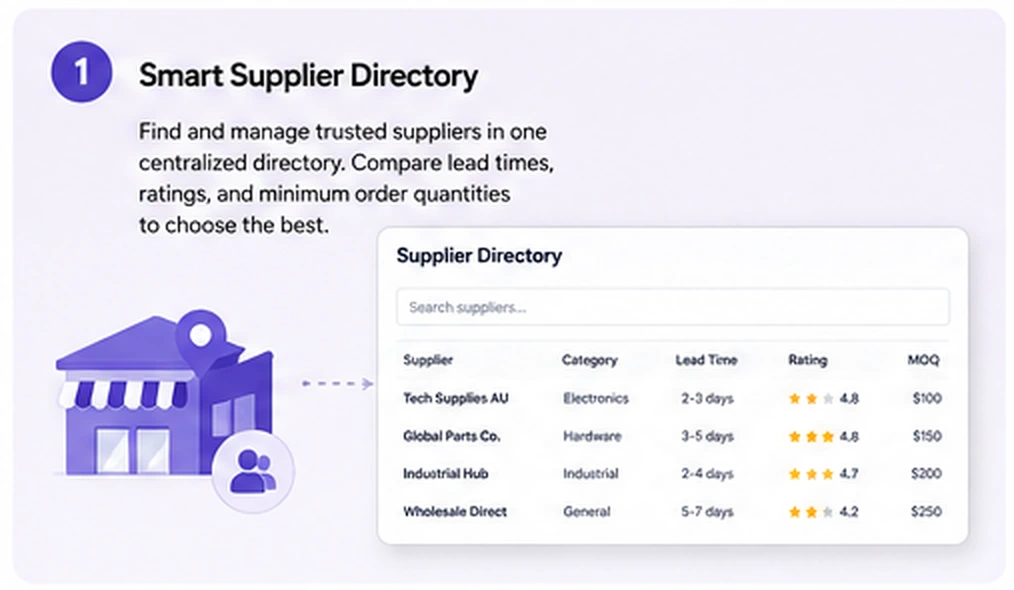
- ✔Supplier directory for replenishment and dropshipping workflows.
- ✔Smarter reorder quantities using stock, sales velocity, lead time, and safety stock context.
- ✔Purchase-order workflow with review before sending supplier messages.
- ✔AI-assisted supplier document intake and goods received approval before stock changes.
Low Stock Notifier vs OmniSupply AI
Both tools support inventory operations, but they solve different stages of the workflow. Low Stock Notifier is the alert layer. OmniSupply AI is the upgrade for supplier action and replenishment control.
| Workflow need | Low Stock Notifier | OmniSupply AI |
|---|---|---|
| Primary job | Alerts your team when WooCommerce products enter a low, critical, or out-of-stock risk zone. | Helps manage the supplier and replenishment workflow after stock risk has been identified. |
| Best for | Stores that need a simple WooCommerce low stock notifier and clear stock-warning emails. | Stores that need supplier records, purchase-order workflows, document intake, goods received review, and safer stock updates. |
| Notifications | Instant alerts and daily inventory digest for products inside the warning zone. | Operational workflow visibility around supplier ordering, fulfilment, receiving, and replenishment tasks. |
| Supplier management | Not the main purpose. It tells you what needs attention. | Built for supplier directory management, workflow type, lead times, and replenishment context. |
| Ordering workflow | Your team decides what to order after receiving the alert. | Supports recommended order quantities, purchase-order messages, review, approval, and ordering history. |
| Receiving stock | Alerts only. Receiving and stock updates are handled outside the notifier. | Supports goods received approval and safer stock increases after supplier documents are reviewed. |
| Recommended path | Use it when you need early warning and team notification. | Upgrade when stock alerts need a controlled supply-chain process. |
Choose the right inventory workflow
Start with the problem you need solved today. If you only need stock alerts, keep the workflow focused. If alerts are creating manual supplier work, use the upgrade path.
Use Low Stock Notifier when you need alerts
This is the cleaner fit when your store already knows how to reorder but needs earlier visibility into stock risk.
- You want low-stock and critical-stock warnings.
- You want email recipients to receive stock alerts.
- You want a daily digest of inventory risk.
- You do not need supplier ordering automation yet.
Upgrade to OmniSupply AI when alerts create work
Move to the upgrade when your team needs help deciding what happens after a product is flagged.
- You need supplier records connected to replenishment workflows.
- You want recommended order quantities, not just warnings.
- You need purchase-order review before supplier messages are sent.
- You want supplier document intake and approved stock receiving.
Built for WooCommerce teams that cannot afford surprise stockouts
A WooCommerce low stock notifier is not about adding another dashboard for the sake of it. It is about shortening the time between a stock problem appearing and a team member knowing what needs review.
Clear stock-risk review
Keep low stock, critical items, and out-of-stock products visible so the team can prioritise replenishment before small catalogue issues become customer-facing problems.
Simple team notification
Send alerts to the people responsible for ordering, stock control, or store operations. A good alert workflow reduces the need for repeated manual checks.
Upgrade without changing the story
The upgrade path is natural: Low Stock Notifier shows the risk, and OmniSupply AI helps manage the supplier action after that risk is found.
From stock warning to supply-chain workflow
Low stock alerts are useful, but alerts alone do not decide supplier, quantity, message, fulfilment route, or received-stock approval. That gap is where manual mistakes often happen.
OmniSupply AI is designed to close that gap with supplier context, recommended quantities, replenishment workflows, dropshipping fulfilment support, customer-note review, supplier document intake, and goods received approval.
If your store only needs a WooCommerce low stock notifier, keep the setup simple. If the team keeps asking what to order next, move the workflow into OmniSupply AI.
WooCommerce low stock notifier FAQs
Quick answers for store owners comparing alert-only inventory monitoring with a broader replenishment and supplier workflow.
What does a WooCommerce low stock notifier do?
It monitors WooCommerce stock levels and alerts your team when products enter a low-stock, critical-stock, or out-of-stock state. The purpose is faster review before inventory issues affect customers.
When should I upgrade to OmniSupply AI?
Upgrade when alerts are no longer enough. If your team needs supplier records, reorder quantity guidance, purchase-order review, document intake, or goods received approval, OmniSupply AI is the better fit.
Does Low Stock Notifier replace supplier management?
No. Low Stock Notifier is the warning layer. It helps your team see which products need attention. OmniSupply AI is the upgrade for supplier management and replenishment workflows.
Can this help reduce out-of-stock surprises?
Yes, a clear alert process can help your team react earlier. It does not guarantee that products will never run out, but it reduces the chance that low inventory goes unnoticed.
Download the free alert plugin. Upgrade when the workflow needs action.
RixonApps Low Stock Alerts for WooCommerce is available free from WordPress.org. Use it to see stock risk clearly, then move to OmniSupply AI when your store needs supplier context, replenishment planning, purchase-order review, document intake, and approved receiving after the alert.