SiteSeller AI guides.Start with Dex.
Grow with Sophie.
Set up your WordPress assistant, prepare your visitor experience and find useful things to ask next. Three practical PDF guides take you from your first conversation to everyday work with Dex and Sophie.
Read online or save a copy. No email sign-up required.
One collection. A clear next step.
New to SiteSeller AI? Begin with the quick guide. Already connected? Use the full manual for a particular settings screen, or open the playbook for a focused task.
Dex Quick Setup Guide
Get your first Dex conversation working, then let him guide you through the remaining setup one step at a time.
- Install and activate the plugin.
- Connect your own OpenAI API key.
- Enable Dex and test a real reply.
- Keep Sophie off while you prepare.
Dex & Sophie Full Setup Manual
Follow the complete configuration, or go straight to the AI Console screen you are working on.
- Knowledge Sources and product information.
- Sales, comparison and support rules.
- Widget appearance and optional connections.
- Visitor testing and troubleshooting.
Capabilities & Prompt Playbook
Turn a broad idea into a useful request with 133 copy-and-paste prompts and 16 business playbooks.
- Page drafts, SEO and AI visibility.
- Performance, styling and accessibility advice.
- Product, sales and support conversations.
- Review workflows and launch checklists.
Guide edition: SiteSellerAI 0.1.6 · September 2026. Some screens may differ in later plugin versions.
Still deciding whether SiteSeller AI fits your website?
Read the guides first, then review the features, requirements and licence options.
Help for you. Guidance for your visitors.
SiteSeller AI brings Dex into WordPress admin and Sophie onto your website. These guides explain how to prepare each role and use it with clear limits.
A clearer brief. A useful next step.
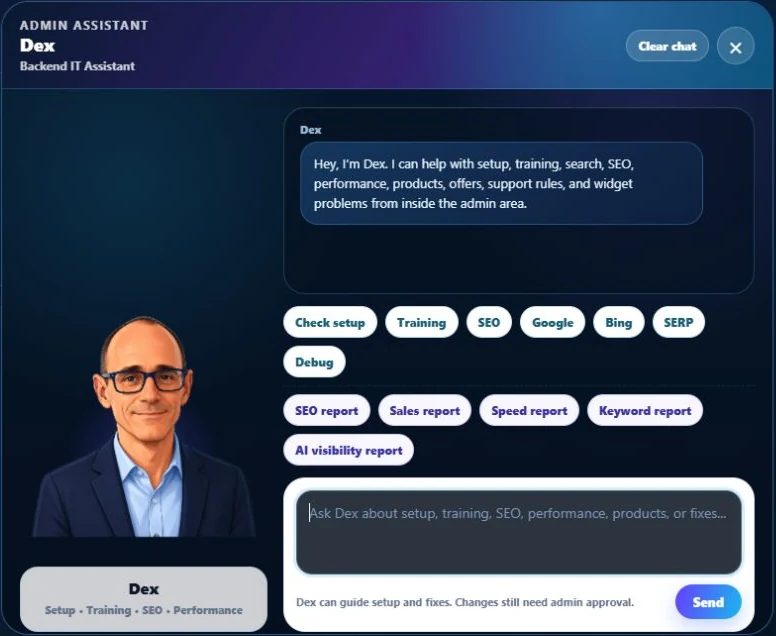
Ask Dex to explain a settings screen, review available site information or prepare a page draft. Use the supported page workflow to inspect and approve changes before they are applied.
Connected reports depend on the services and permissions you provide. SEO metadata can be drafted for you to enter in its own fields.
Products. Offers. Business rules.
A helpful next step.

Help visitors understand their options.
Give Sophie accurate product information, enabled offers and business rules. She can explain relevant choices and point visitors towards a product, purchase page or support route.
Test answers against your real sources. Sophie does not replace private-order support or process refunds.
Start small. Check each step.
Use the quick guide to make your first connection, then keep the full manual beside you as you prepare your website.
- STEP 01
Install & connect
Install SiteSeller AI, activate your licence and enter your own OpenAI API key in the plugin’s settings. In WordPress, look for the AI Console menu.
- STEP 02
Get a real Dex reply
Enable the admin assistant and send a message. A relevant reply confirms the conversation works. Keep the public assistant off while preparing Sophie.
- STEP 03
Add your business knowledge
Prepare Knowledge Sources, products or manual offers, and sales and support rules. Save your sources and refresh the Knowledge Index.
- STEP 04
Test before going live
When ready, enable Sophie and test realistic questions in a private browser window. Check the answers, links and next steps before leaving her live.
A few useful answers.
Choose the right guide, understand what you need and know where the product’s current details live.
Which SiteSeller AI guide should I read first?
Start with the Dex Quick Setup Guide if you have not had a working reply from Dex. Once connected, use the Full Setup Manual to configure Sophie and the Prompt Playbook to plan practical work.
Can I read these guides before buying?
Yes. All three PDFs are available from this page without an email sign-up. You need the SiteSeller AI plugin, an active licence and your own OpenAI API account to use the assistants on your website.
Do I need WooCommerce?
No. WooCommerce provides catalogue information when you run a WooCommerce store. Enabled manual offers can support services, software and other products, including offers sold through an external destination.
Why does WordPress call it AI Sales Console?
The guides use the plugin’s installed name, AI Sales Console, and its WordPress menu label, AI Console. SiteSeller AI is the public product name; Dex and Sophie are its two assistants.
Do I need to connect every reporting service first?
No. Start with the plugin and your OpenAI API connection. Add optional reporting connections when you need their data. A report can only use information available from the services you have connected.
Does the playbook mean Dex can change every setting?
No. It distinguishes advice, drafts, supported approved page actions and steps you complete yourself. You review the target and proposal, enter credentials in settings, manage third-party configuration and decide when to publish drafts.
Why did Download PDF open the guide instead?
Some browser, mobile or hosting settings open PDFs instead of saving them immediately. Use the viewer’s download or save control. If the PDF will not display in your browser, save it and open it in a PDF reader.
Put the guides to work on your website.
Bring practical page assistance and visitor guidance into one WordPress product. Review SiteSeller AI’s features, requirements and licence options before you choose.
Dex + Sophie · Annual or lifetime options · One website per licence · OpenAI API usage separate