

WooCommerce Google Sheets vs CSV
WooCommerce Google Sheets vs CSV is an important choice for stores managing regular stock updates. CSV works well for controlled one-off imports, while Google Sheets can provide a repeatable stock-sync workflow with shared data, previews, review controls and fewer repeated file-handling steps.
CSV importing can work for occasional one-off updates. But if your stock changes often, a live Google Sheets stock sync workflow gives you a more controlled way to review, schedule and apply inventory updates without repeatedly exporting, editing and re-importing files.
Why inventory accuracy matters in WooCommerce
Inventory is one of the few WooCommerce settings that can affect the customer experience immediately. If the quantity is wrong, a customer may buy an item that is not available. If a product is marked out of stock too early, the store can miss a sale. If staff update the wrong product, the mistake may not be noticed until an order, supplier check or customer support request exposes it.
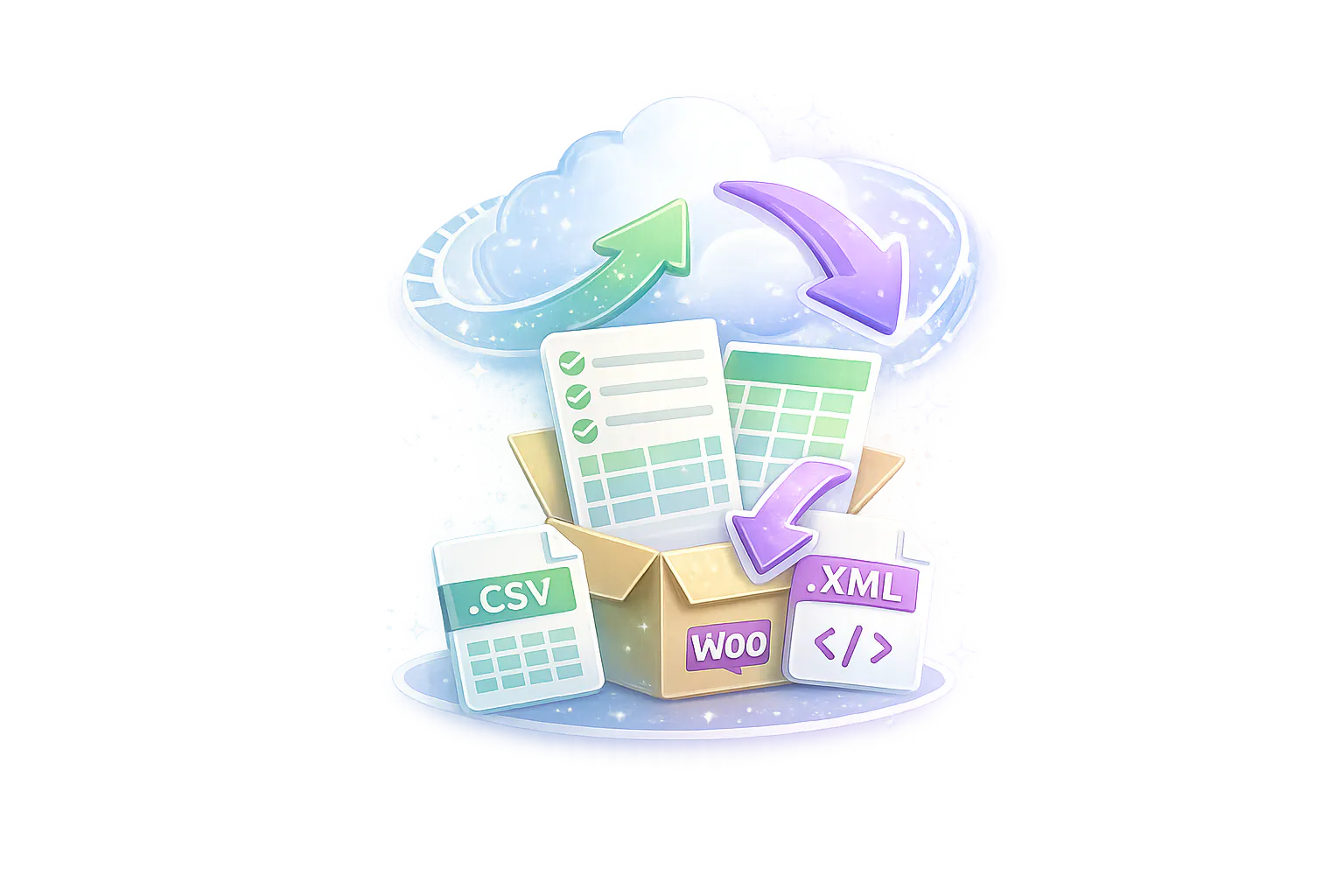
Many stores begin with CSV files because WooCommerce has import and export tools, spreadsheets are familiar, and a CSV file is easy to pass between systems. That workflow is useful when you need a one-time migration, a controlled bulk edit, or a simple product data import.
But day-to-day stock management is different from a one-time data import. Stock changes repeatedly. Suppliers send updated quantities. Staff may need to edit values at the same time. Store owners need a way to preview changes before they touch live products. That is where a Google Sheets stock sync workflow becomes stronger than repeatedly importing CSV files.
What is WooCommerce CSV Import?
WooCommerce CSV import is a manual file-based workflow. You export product or inventory data, edit the CSV in a spreadsheet tool, save the file, then import it back into WooCommerce. The process can be useful, especially when the change is occasional and the person importing the file understands the column structure.
Common CSV workflow
- Export products or stock data from WooCommerce, a supplier or another system.
- Open the file in spreadsheet software and edit stock values or product fields.
- Check the columns, identifiers, SKUs and quantities manually.
- Upload the file through the WooCommerce importer or another import tool.
- Review the store afterwards to confirm the expected products changed.
Where CSV importing helps
CSV imports are practical for one-off setup tasks, migrations, small catalog edits and supplier files that only arrive occasionally. They are also widely understood. Most store owners, agencies and administrators know how to open a CSV and inspect the rows.
Where CSV importing becomes risky
The weakness is repetition. Every import depends on the latest file being correct, the columns staying aligned, the product identifiers matching, and the person importing the file choosing the right settings. If the file is stale or the wrong column is mapped, the live store can be updated with bad data.
What is Google Sheets Stock Sync?
Google Sheets stock sync uses a live spreadsheet as the source for WooCommerce inventory updates. Instead of exporting a file, editing it, saving a new CSV and importing it again, your team can maintain stock values in a shared Google Sheet and sync those values into WooCommerce through a controlled workflow.
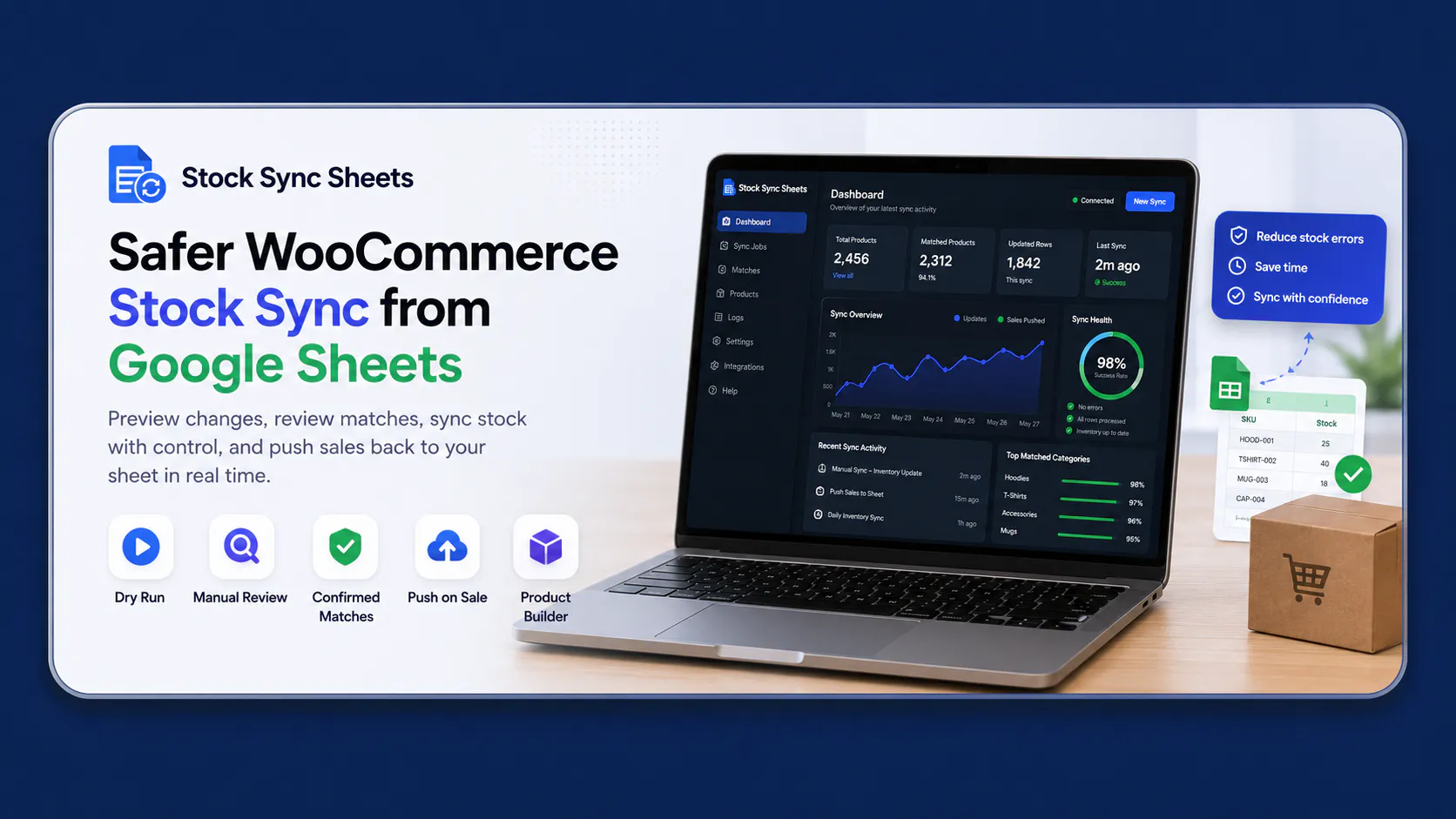
This does not mean every spreadsheet edit should blindly update your store. A safer workflow still needs matching controls, preview checks and a way to review uncertain rows. Stock Sync Sheets is built around that kind of controlled process: connect the sheet, map the data, preview changes, review matches and then apply updates when you are ready.
How live spreadsheet syncing is different
- The spreadsheet remains available to approved staff instead of being passed around as separate files.
- Updates can be run manually or scheduled after the workflow has been tested.
- Dry Run lets you preview proposed stock changes before they update live products.
- Manual Review helps avoid guessing when a product match is uncertain.
- Sheet Push can send WooCommerce sale stock reductions back to Google Sheets in real time where configured.
WooCommerce Google Sheets vs CSV for Stock Sync
For occasional product setup, CSV import can be enough. When comparing WooCommerce Google Sheets vs CSV for regular inventory control, Google Sheets reduces repeated file handling and creates a safer, more repeatable stock workflow.
| Area | Manual CSV imports | Google Sheets live stock sync | Best fit |
|---|---|---|---|
| Ease of use | Simple for one-off imports, but each import requires file handling and mapping attention. | Staff work in a familiar shared sheet while the sync workflow handles repeat updates. | Google Sheets for regular stock work |
| Speed | Fast for small files, slower when exporting, editing, checking and re-uploading repeatedly. | Faster for repeat updates because the spreadsheet remains connected. | Google Sheets |
| Automation | Mostly manual unless paired with other import automation. | Can support manual runs first, then scheduled syncs after testing. | Google Sheets |
| Human error | More manual touchpoints: file version, columns, upload settings and product identifiers. | Fewer repeated file steps, with Dry Run and review controls available. | Google Sheets |
| Scheduling | Usually requires someone to import at the right time. | Scheduled updates are available after the source and matching workflow are proven. | Google Sheets |
| Multiple users | Multiple file copies can create confusion about which version is current. | Google Sheets supports shared editing and a single working source. | Google Sheets |
| Product matching | Depends heavily on correct identifiers and import settings. | Stock Sync Sheets supports confirmed matches, Manual Review, ignored products and blacklist controls. | Google Sheets with review controls |
| Large catalogues | Large files are harder to inspect and easier to mis-edit. | Mapped sheets and controlled preview workflows are easier to repeat. | Google Sheets |
| Safety | Safety depends on manual checking before and after import. | Dry Run helps show proposed changes before updating live WooCommerce stock. | Google Sheets |
| Rollback ability | You may need another corrected import if bad data is applied. | The sheet provides a clearer working source, but any live update should still be tested and backed up. | Depends on process |
| Live updates | CSV is not live. It is a snapshot at the time of export. | Google Sheets can stay connected, and Sheet Push can update the sheet after WooCommerce sales where configured. | Google Sheets |
| Maintenance | Ongoing imports create repeated manual admin work. | A tested mapping and sync workflow is easier to reuse. | Google Sheets |
Why CSV imports cause problems
CSV imports are not bad by default. The problem is that they put a lot of responsibility on the person preparing and importing the file. A CSV file is a snapshot. If the export is old, the imported data is old. If the wrong column is edited, WooCommerce can receive the wrong value. If a SKU or product ID is changed, the import may update the wrong product or fail to update the product you expected.
The most common CSV problems are not dramatic technical failures. They are ordinary workflow mistakes: a team member uses an outdated export, a supplier sends a file with changed headings, a column shifts, a variation row is confused with a parent product, or someone imports before checking the final values.
These mistakes are especially painful for inventory because stock changes are customer-facing. Product descriptions can be corrected later with less immediate damage. Stock values can affect sales, fulfilment and customer trust as soon as the update goes live.
Wrong columns
CSV imports rely on columns being mapped correctly. If a supplier file changes or a store owner edits the wrong heading, a quantity may not land where expected. In a large file, that can be hard to catch by eye.
Wrong products
Product matching matters. If a workflow depends on SKUs, those SKUs must be unique and consistent. If it depends on product IDs, the IDs must belong to the same WooCommerce site. Reused files and supplier exports can make this more fragile.
Outdated exports
A CSV export becomes stale as soon as stock changes after the export. If orders continue while staff edit the file, the imported quantities may no longer reflect the live store.
No live shared source
Emailing files or storing copies in folders can create version confusion. A Google Sheet gives the team one shared place to maintain inventory values before syncing them into WooCommerce.
How Stock Sync Sheets makes Google Sheets safer
Stock Sync Sheets is designed for WooCommerce stores that want spreadsheet control without treating every spreadsheet row as an instant live update. The stronger workflow is controlled: prepare the sheet, map the fields, preview the changes, review uncertain matches, then update WooCommerce when the result looks right.
Safety controls that matter
- Dry Run previews stock changes before live WooCommerce products are updated.
- Manual Review helps stop uncertain product matches from being guessed automatically.
- Confirmed Matches let repeat workflows become more predictable after review.
- Ignored Products and blacklist controls help avoid updating items that should not be touched.
- Logs and review screens give store owners a clearer way to inspect what happened.
From spreadsheet to WooCommerce: a safer workflow
The safest stock workflow is not “sync everything immediately.” It is a staged process that lets you check the source data and product matching before live inventory changes are applied.
Prepare the Google Sheet
Keep stock values, SKUs and product identifiers in a structured sheet. Make the sheet readable and consistent so your team can maintain it without creating multiple file versions.
Map the WooCommerce fields
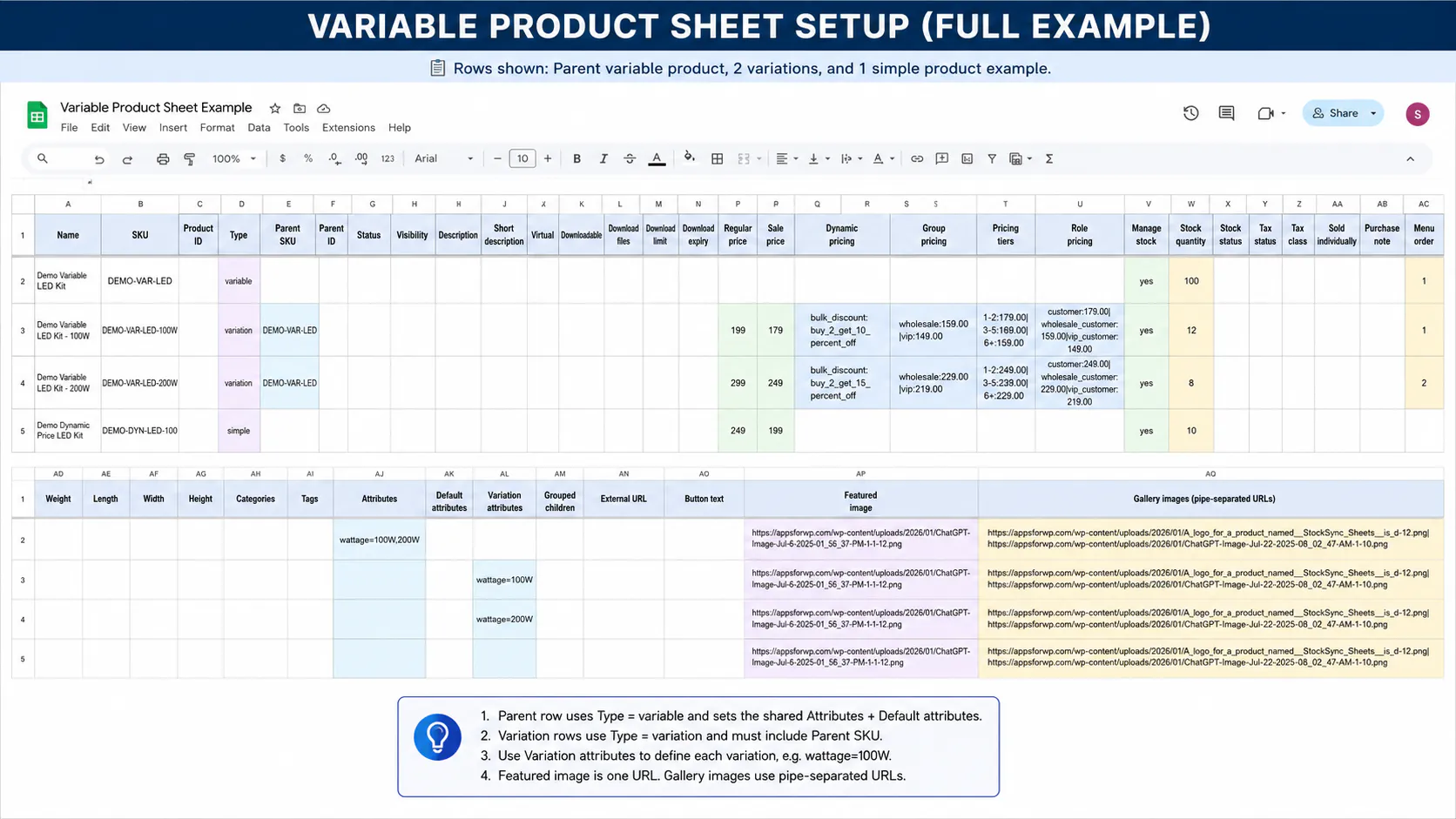
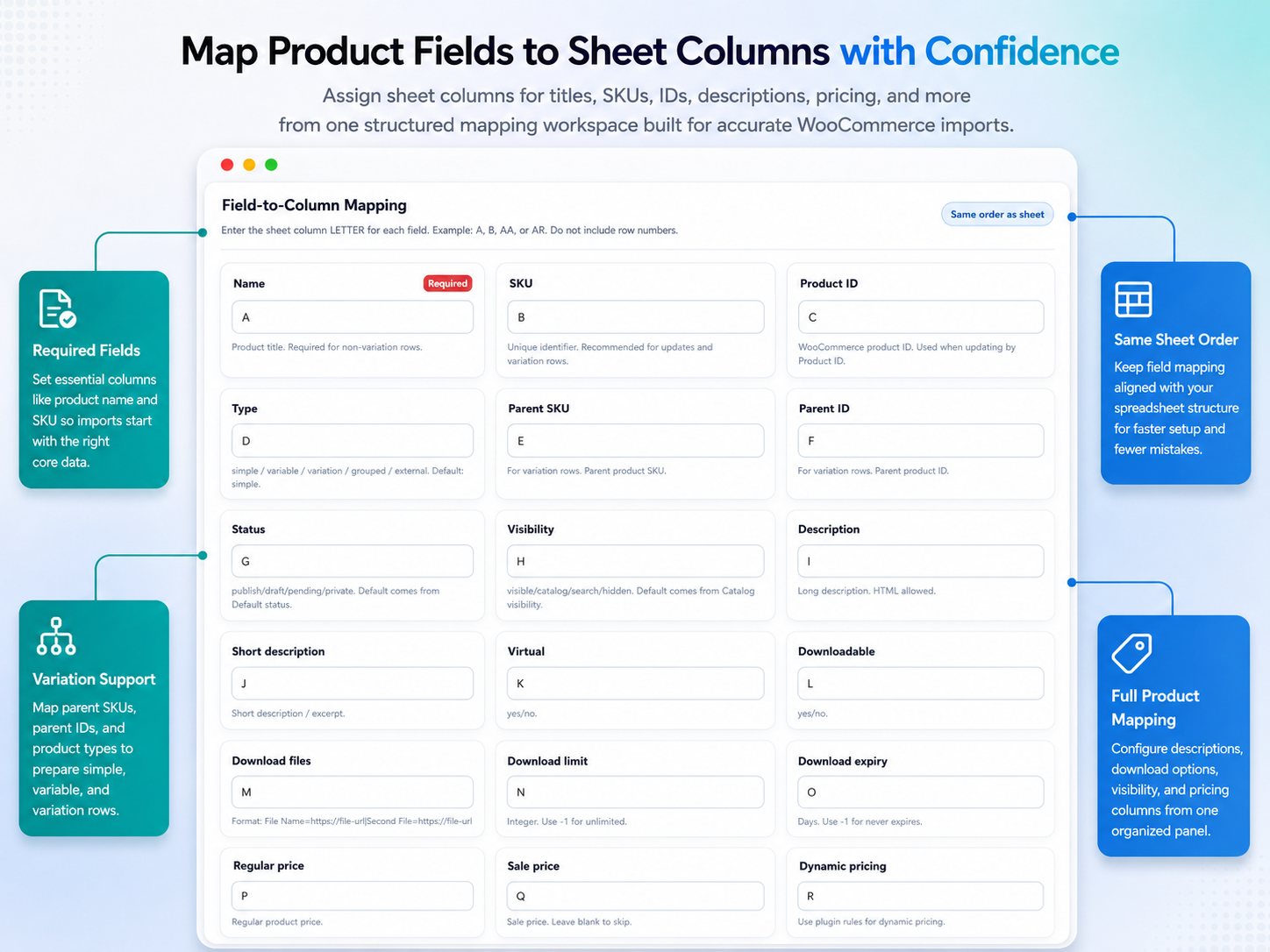
Connect the relevant sheet columns to WooCommerce stock fields. For product creation or updates, Product Builder can also help with mapped product data workflows.
Run a Dry Run preview
Preview the proposed changes first. This is the key difference between a controlled sync workflow and a risky blind update.
Review uncertain matches
Rows that do not match cleanly should be reviewed rather than guessed. Manual Review is one of the strongest reasons to prefer Stock Sync Sheets over a basic file import process.
Apply the update and keep the sheet current
After testing, you can run controlled stock updates. Where configured, Sheet Push can also push WooCommerce sale stock reductions back to Google Sheets in real time.
When CSV import is still the right choice
This comparison should be fair: CSV import still has a place. If you are moving data once, testing a small set of products, or receiving a rare supplier file that does not need a repeat workflow, CSV can be perfectly reasonable.
CSV can also be useful as a backup or export format. Store owners may want a file they can archive, inspect or share with a developer. The issue is not the CSV format itself. The issue is using manual CSV importing as the main inventory process for a store that changes frequently.
If your catalogue is small and stock rarely changes, manual imports may be enough. If your team updates stock every week, every day, or several times a day, Google Sheets live syncing becomes easier to control and repeat.
CSV is suitable for migrations, small bulk edits and occasional imports where someone can check the file carefully.
A shared sheet is stronger when stock changes often and your team needs one working source.
Dry Run, Manual Review and confirmed matching give you more protection than a basic manual file upload.
Which stores benefit most from Google Sheets stock sync?
Google Sheets stock sync is most useful when stock control is an ongoing job rather than an occasional admin task. That includes stores with frequent supplier updates, teams that already manage stock in spreadsheets, agencies managing multiple client stores, and catalogues where manually checking every row is unrealistic.
Small stores
A small store can still benefit if the owner already uses Google Sheets as the inventory source. The value is not only catalogue size. It is fewer repeated manual steps and more confidence before updating live products.
Large stores
Large catalogues make CSV checking harder. More rows mean more chances to miss a bad value. A mapped Google Sheets workflow with preview and review steps is easier to repeat.
Wholesale and supplier-led stores
Stores that receive stock feeds or supplier spreadsheets need a controlled way to bring those numbers into WooCommerce. A live sheet can act as the working layer between supplier data and store inventory.
Agencies and repeat builds
Agencies need repeatable processes. If every client update depends on manual CSV handling, the process becomes harder to train and easier to break. A consistent Google Sheets workflow is easier to document and hand over.
Stores with multiple staff
When more than one person touches inventory, shared access and version control matter. Google Sheets helps keep the team working from the same source rather than passing around separate CSV copies.
Why sync WooCommerce with Google Sheets?
The strongest reason to choose Google Sheets in a WooCommerce Google Sheets vs CSV comparison is not that CSV files are unusable. It is that live spreadsheet syncing can be built into a more controlled workflow. The goal is to reduce repeated manual handling, preview changes before they go live, and give uncertain product matches a review path.
For WooCommerce store owners, the practical question is simple: do you want to keep downloading, editing and importing stock files, or do you want a repeatable spreadsheet workflow that can be tested, reviewed and scheduled?
Stock Sync Sheets is built for the second workflow. It supports safer matching, Dry Run checks, Manual Review, scheduled stock updates and Sheet Push after sales. That combination makes it a stronger fit for stores that rely on spreadsheets but do not want spreadsheet mistakes to become live store mistakes.
Frequently asked questions
Is Google Sheets always better than CSV import?
No. CSV import is still useful for one-off tasks, migrations and occasional updates. Google Sheets stock sync is usually better when inventory changes repeatedly and you need a safer, repeatable workflow.
Can CSV imports update the wrong WooCommerce products?
They can if the identifiers, columns or import settings are wrong. That is why product matching and review controls matter. A safer workflow should avoid guessing when a match is uncertain.
Does Stock Sync Sheets update products immediately?
The safer approach is to test first. Stock Sync Sheets supports Dry Run previews so you can inspect proposed stock changes before applying them to live WooCommerce products.
Can multiple staff manage stock in Google Sheets?
Yes. Google Sheets is built for shared access, which makes it more practical than passing around separate CSV files. You should still control permissions and keep the sheet structure consistent.
Can WooCommerce sales update the Google Sheet?
With Sheet Push configured, WooCommerce sale stock reductions can be pushed back to Google Sheets in real time. That helps keep the spreadsheet closer to the live store after orders.
Can I use Google Sheets for product creation too?
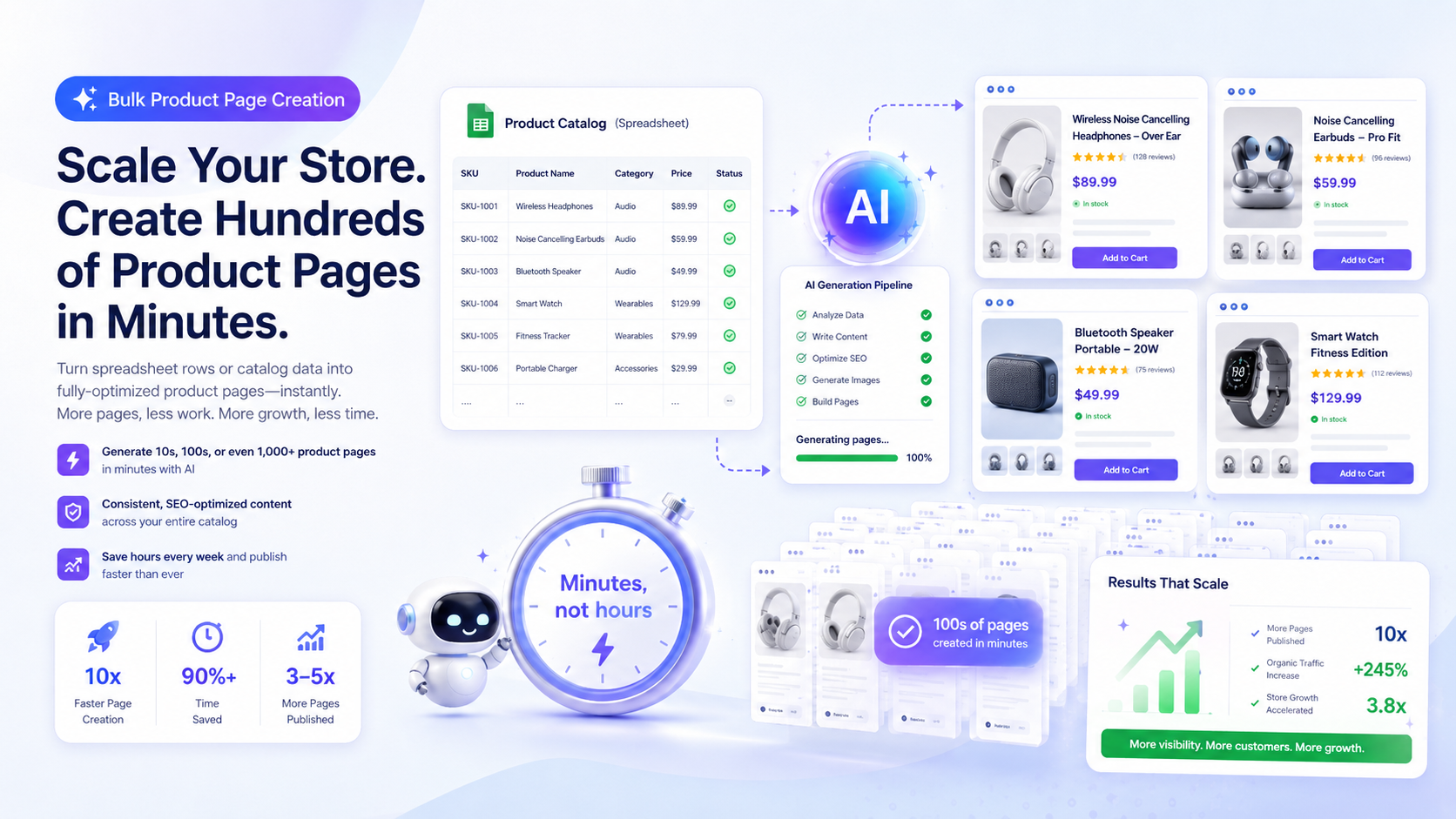
Yes. Stock Sync Sheets includes Product Builder workflows for creating or updating WooCommerce product data from mapped sheet rows. Stock sync and product building should still be tested before live use.
What is the safest first step?
Start with a controlled test sheet and a Dry Run. Confirm that product matching and stock values look correct before applying updates or enabling scheduled syncs.
Should I stop using CSV completely?
Not necessarily. Keep CSV for exports, backups and occasional one-off imports. Use Google Sheets stock sync when you need a repeatable operational workflow.
Move from manual CSV imports to safer Google Sheets stock sync
If your WooCommerce inventory still depends on repeated CSV imports, Stock Sync Sheets gives you a more controlled way to manage stock from Google Sheets. Preview updates with Dry Run, send uncertain matches to Manual Review, schedule tested workflows and use Sheet Push to keep Google Sheets updated after sales where configured.