

WooCommerce Stock Management with Google Sheets
Manage WooCommerce inventory and stock from Google Sheets without manually editing products one by one. Stock Sync Sheets helps you preview stock updates, review uncertain matches, save confirmed matches, and sync approved stock changes safely.
A WooCommerce inventory Google Sheets workflow gives stores one practical place to manage supplier stock, warehouse counts, shared inventory files, and daily WooCommerce stock control.
For the wider spreadsheet workflow, see the full WooCommerce Google Sheets integration page covering stock management, Sheet Push after sales, price sync, Product Builder, and Manual Review.
- ✔ Use Google Sheets as your working stock source
- ✔ Preview changes first with Dry Run
- ✔ Review uncertain product matches before syncing
- ✔ Save Confirmed Matches for cleaner future syncs
- ✔ Push WooCommerce sales back to Google Sheets in real time
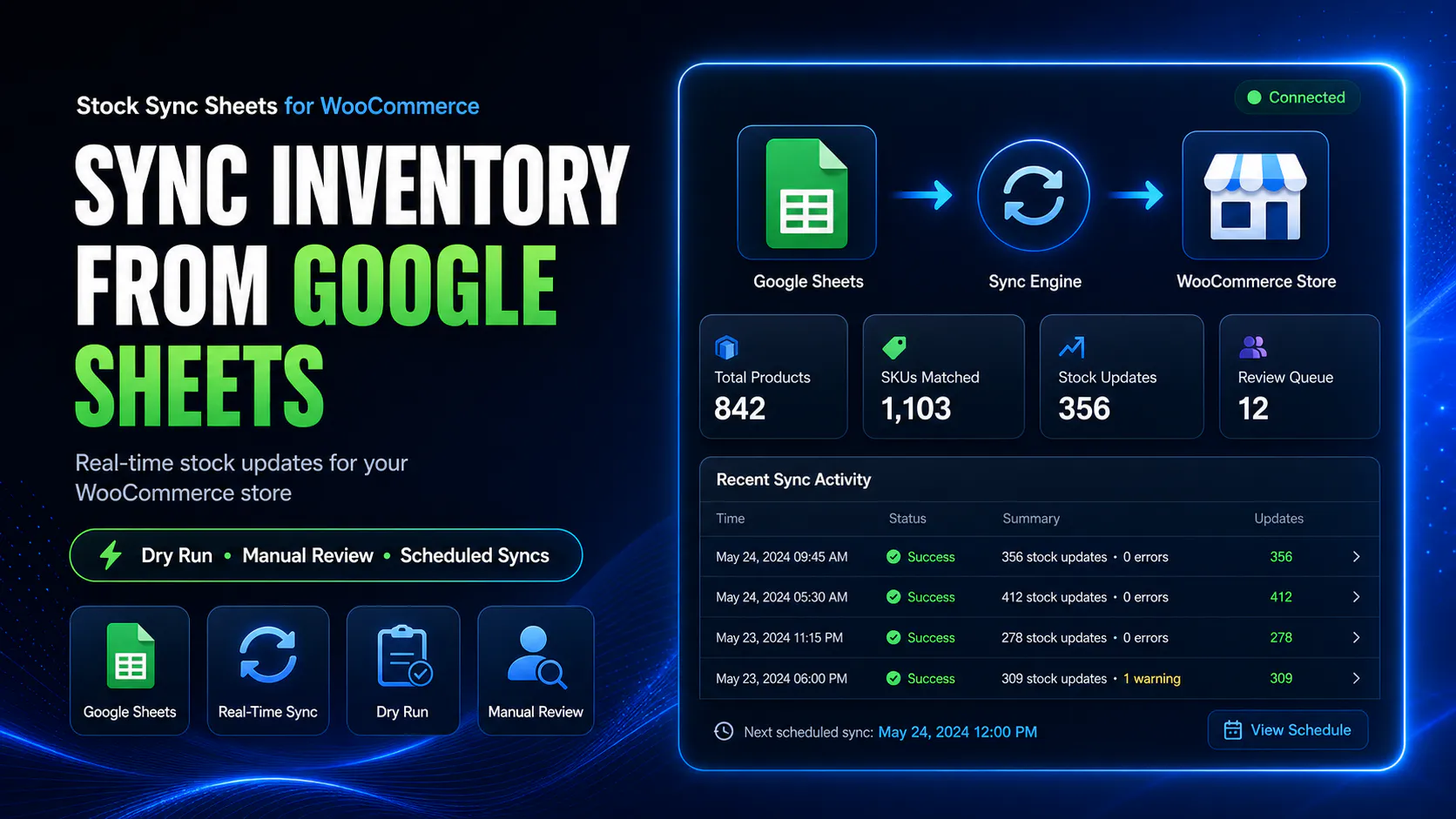
WooCommerce Inventory Google Sheets for stock management
A WooCommerce inventory Google Sheets workflow keeps your live store aligned with the spreadsheet data your team already uses for supplier files, warehouse counts, product IDs, SKUs, model codes, and daily stock control.
Your inventory data is already in sheets
Many store owners manage supplier stock, warehouse counts, WooCommerce inventory, and product updates in Google Sheets before touching WooCommerce.
WooCommerce needs accurate live stock
Your live store needs correct stock quantities and stock status so customers do not buy products that should be unavailable.
Blind imports are risky
A stock import without preview, logs, or match review can update the wrong product or overwrite live stock incorrectly.
Real-time sale updates matter
Push on Sale helps send WooCommerce stock changes back to Google Sheets when orders reduce stock.
How WooCommerce inventory Google Sheets stock management works
The workflow is built around previewing, reviewing, confirming, and syncing. The goal is not just speed. The goal is safer stock updates.
The safe stock sync workflow
Use this order when setting up a WooCommerce inventory Google Sheets workflow:
- Connect your Google Sheet using the correct sheet ID and tab name.
- Select the row range and columns that contain product identity and stock quantity data.
- Map product identifiers such as SKU, product ID, model code, or product name.
- Run a Dry Run before applying any live stock changes.
- Check the sync log to confirm what was matched, skipped, or sent to Manual Review.
- Resolve uncertain matches in Manual Review.
- Save Confirmed Matches so future syncs are cleaner.
- Run a live sync only when the preview result is clear.
- Enable scheduled syncs only after the manual workflow is tested.
WooCommerce stock management options compared
There are a few ways to manage stock. The right choice depends on your store size, spreadsheet workflow, and how much safety you need before updates go live.
| Workflow | Best for | Main limitation | How Stock Sync Sheets helps |
|---|---|---|---|
| Editing stock directly in WooCommerce | Small stores with occasional stock changes | Slow when many products or supplier sheet updates are involved | Lets Google Sheets become the working stock source for WooCommerce updates |
| Manual CSV import | Occasional bulk updates | Risky if rows, columns, or product matches are wrong | Adds Dry Run, logs, Manual Review, Confirmed Matches, and sync controls |
| Custom REST API integration | Developers building a custom stock system | Requires development, authentication, testing, maintenance, and error handling | Provides a no-code Google Sheets stock sync workflow for store owners |
| Stock Sync Sheets | WooCommerce stores already managing stock in Google Sheets | Requires correct setup and a careful first Dry Run | Connects sheet data to WooCommerce with preview, review, matching, scheduling, Sheet Push, and Push on Sale |
Safety controls built for real stock workflows
Stock mistakes can cause real store problems. Stock Sync Sheets is built around checking changes before they affect live WooCommerce products.
Dry Run
Preview likely stock updates before applying changes to live WooCommerce products.
Manual Review
Review uncertain product matches instead of forcing the plugin to guess.
Confirmed Matches
Save approved product matches so future syncs become cleaner and faster.
Ignored and Blacklist controls
Ignore rows that should not sync and block bad matches from being reused.
What a WooCommerce Inventory Google Sheets workflow can manage
Your exact setup depends on your sheet structure, but a practical WooCommerce inventory and Google Sheets workflow usually includes product identity fields, stock quantities, stock status, and controls for which rows or categories should sync.
Stock quantities
Update WooCommerce stock quantity values from mapped Google Sheets columns.
Stock status
Keep stock status aligned with your stock data and WooCommerce product settings.
Product identity fields
Use fields such as product ID, SKU, model code, product name, tab name, and row range.
Variation-aware workflows
Support variation stock workflows when product identity and variation data are mapped correctly.
Category-filtered syncs
Limit stock sync workflows to selected product categories when you need tighter control.
Scheduled syncs
Use scheduled stock syncs after the first Dry Run and live workflow have been tested.
Google Sheets to WooCommerce inventory, and WooCommerce back to Google Sheets
A useful stock workflow should not only pull spreadsheet data into WooCommerce. It should also support WooCommerce-to-sheet updates when sales reduce stock.
Stock Sync Sheets supports both directions
Use Stock Sync to update WooCommerce from Google Sheets. Use Sheet Push and Push on Sale when WooCommerce stock changes need to be reflected back in Google Sheets.
Google Sheets to WooCommerce
Sync approved stock quantity and stock status updates from mapped sheet rows into WooCommerce.
WooCommerce to Google Sheets
Use Sheet Push and Push on Sale when stock changes from orders need to update your shared Google Sheet.
More than stock sync
Stock Sync Sheets is not only a stock updater. It also supports broader spreadsheet-based product workflows.
Product Builder
Create and update WooCommerce products from mapped Google Sheets data, including more advanced product workflows.
Product Builder AI
Draft product descriptions, short descriptions, bullet features, SEO titles, meta descriptions, and focus keyphrases for review.
Sheet Push
Push WooCommerce stock and product data back to Google Sheets for shared stock workflows, including sale-related stock changes through Push on Sale.
Price Sync Included
Price Sync is included in Stock Sync Sheets at no extra cost, with its own controlled workflow for regular price and sale price updates from Google Sheets.
Related WooCommerce Google Sheets stock guides
These related guides explain the two main inventory paths: syncing stock from Google Sheets into WooCommerce and using Google Sheets as a wider WooCommerce inventory workflow.
Google Sheets to WooCommerce Stock Sync
Learn how stock data can move from Google Sheets into WooCommerce using mapped rows, product identifiers, Dry Run, logs, and review controls.
WooCommerce Inventory Sync with Google Sheets
See how Google Sheets can support WooCommerce inventory sync for supplier stock, warehouse counts, shared stock files, and store stock workflows.
WooCommerce inventory and stock management with Google Sheets FAQ
Clear answers for store owners comparing manual stock editing, CSV imports, REST API builds, and Google Sheets stock sync workflows.
Can I manage WooCommerce inventory with Google Sheets?
Yes. Stock Sync Sheets lets you use Google Sheets as a working WooCommerce inventory source and sync mapped stock quantities and stock status into WooCommerce.
Can I preview stock changes before updating WooCommerce?
Yes. Dry Run lets you preview likely stock updates before live WooCommerce products are changed.
What happens if a sheet row matches the wrong product?
Uncertain matches can go to Manual Review so you can choose the correct WooCommerce product before syncing.
Can WooCommerce sales update Google Sheets?
Yes. Push on Sale can send WooCommerce stock changes back to Google Sheets after sales reduce stock.
Do I need a custom WooCommerce REST API integration?
No. For the normal Stock Sync Sheets workflow, store owners can connect Google Sheets and WooCommerce without building a custom REST API integration.
Is Price Sync included in the main plugin?
Yes. Price Sync is included in Stock Sync Sheets at no extra cost and uses its own controlled workflow for regular price and sale price syncing from Google Sheets.
Start with a safer WooCommerce inventory workflow
Connect your sheet, run a Dry Run, check the log, resolve Manual Review items, save Confirmed Matches, then run a live sync when the inventory result is clear.
Get Stock Sync Sheets Open Setup Guide